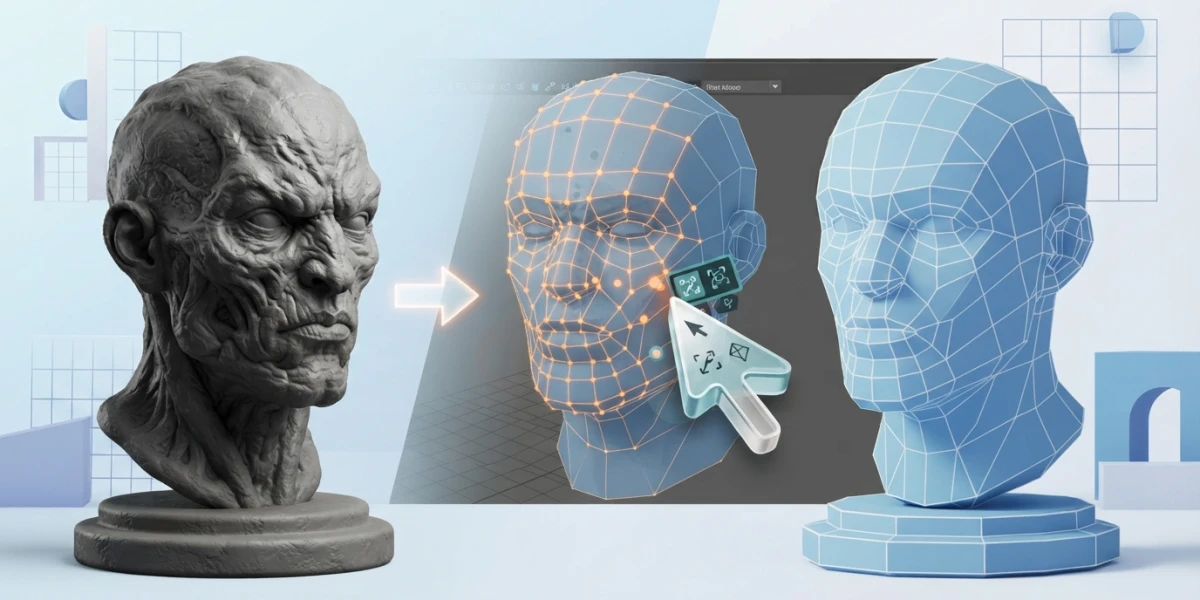
Image generated with AI
Retopology in Maya: Quad Draw step-by-step guide

Diego Cortés
Author
A sculpt with millions of polygons looks perfect until someone tries to animate it: the rig breaks it, the UVs do not fit and the viewport crawls. Retopology in Maya is the step that turns that shape into a mesh you can actually produce with.
Retopology in Maya: why a sculpt is not an animation mesh
Sculpting and retopologizing answer different questions: the sculpt answers how the model looks, retopology answers how it moves, how it gets textured and how expensive it is to keep open. They are two meshes for the same character, and treating them as one is the most expensive mistake in a 3D pipeline.
The dense mesh breaks three things at once. Deformation, because skinning spreads weight across vertices the brush left wherever it wanted, not where the shoulder rotates. UVs, because millions of polygons do not fit into a reasonable texture. And performance, because every deformation evaluation walks that geometry.
In the pipeline it sits after sculpting and before UVs and baking. Maya gives you two routes: Quad Draw, manual, where you decide every vertex and every loop, and Retopologize, automatic, which generates all-quad topology you then tune in its node.
Preparing the reference mesh before you draw anything
Quad Draw does not draw in the air, it draws on a live surface: select the object and use Make Live from the Status Line or the right-click menu. The reference can be a polygon mesh, a NURBS surface, a GPU cache node, a plane or a mesh in Smooth Mesh Preview, and if several objects are live, all of them work. With no reference, dots snap to the grid and the work is worthless.
Object > X-Ray makes the reference transparent so you see the new topology inside. Smooth Mesh Preview helps read volume: key 1 shows the mesh unsmoothed, key 2 keeps the cage with the smoothed version on top, key 3 shows only the smooth one, and Page Up and Page Down change levels.
Quad Draw step by step: dots and quads
The tool lives in the Modeling Toolkit Tools, in Mesh Tools > Quad Draw and in the marking menu with Shift and right-click on the viewport. After switching tools, the Y key brings it back without hunting through menus.
A click on the reference drops a green dot that stays attached to the mesh: drag it to reposition, Ctrl and Shift with a click deletes it, and Clear Dots wipes them all. With Symmetry enabled in the Modeling Toolkit, dots are created mirrored across an axis, which saves half the work on a character.
Between dots and existing vertices you build quads, and triangles fill triangular gaps. Quad Draw also adds new faces to an existing mesh, which makes it useful for repairing a specific area instead of rebuilding the model.
Refining without undoing: Auto-weld, Relax and Extend
Auto-weld is on by default and welds adjacent vertices and edges. Its tolerance is measured in pixels, not scene units: set it to 10 and anything within ten pixels merges. It has no effect with Soft Selection.
Relax evens out vertex spacing across the surface. Auto-Lock decides based on the cursor; you can also limit it to Interior, to Border (continuous borders only, averaging border weights) or to All. Borders matter because that is where a mesh looks messy even when the interior is fine.
Extend grows edges to create polygons, and the hotkeys change the pace: Shift and drag relaxes, Ctrl with a click inserts an edge loop, Ctrl with Shift and a click deletes components, Tab and drag extends an edge into quad strips and Tab with a middle drag extends the loop. None of this is learned by reading: it is learned by repeating it on a head.
Symmetry and the mistakes that dirty a mesh
Symmetry speeds things up but carries a documented trap: with Topological Symmetry on a mesh that is not symmetric, Quad Draw can produce lamina faces and other unwanted constructs. The rule is simple: use it only if the mesh is one hundred percent symmetric, or run Cleanup afterwards.
Lamina faces share all of their edges with each other and show up when you duplicate faces without separating duplicates and then merge vertices; Mesh > Cleanup removes them. If your sculpt came out of a mirrored workflow, check this first: a mesh with laminas fails in the bake.
Automatic Retopologize: the polyRetopo node and its settings
In the Modeling menu set, Mesh > Retopologize generates new all-quad topology while preserving surface features, and the result lands in a polyRetopo node you adjust afterwards.
Target Face Count is a desired number, not a hard count: the algorithm prioritizes input detail, so a very low target may not be met (enable Preprocess and try again). Tolerance sets a margin around the target, and values below 10 only make the process slower.
Topology Regularity controls how many singularities remain, meaning vertices whose edge count is not four: at 0 there are more and the mesh is more sensitive to the surface, at 1 there are fewer but fine detail may soften. Face Uniformity goes from variable face sizes, smaller where curvature is higher (0), to uniform faces (1). Anisotropy stretches faces along directional curvature and has no effect when Uniformity is set to 1.
Preprocess Mesh optimizes dense meshes over a hundred thousand triangles with noise: it speeds things up and raises the success rate, but it smooths and can lose detail. Keep Original works on a duplicate. Preserve Hard Edges respects the hard edges set with Harden Edges, and too many make the process longer. Defaults target organic surfaces; on hard surface you raise Regularity and Uniformity to 1 and drop Anisotropy to 0, as in the hard surface post.
When it finishes, delete history (Edit > Delete by Type > History) or polyRetopo runs again when the file opens.
When the automatic fails: preparing the mesh with Cleanup
Retopologize works best on dense, organic meshes with evenly distributed faces. With a dirty input the order is: try Preprocess, separate components with Separate, apply Soften Edge while keeping hard edges only where there are features and only on complete loops, run Mesh > Cleanup with its nine checkboxes (faces with more than four sides, concave, with holes, non-planar, lamina, non-manifold, zero-length edges, zero-area faces and invalid components), Merge with a small threshold, Remesh and delete history. The command also offers Scan mesh for issues, and progress runs in the Output window.
Performance and closing: from viewport to bake
Smooth Mesh Preview is display only and never affects the render: render with the preview on and the mesh comes out unsmoothed. The other lever is GPU Override in the Evaluation Toolkit (Windows > General Editors): it speeds up deformations in Serial or Parallel mode with standard deformers and dense geometry, and only works with Viewport 2.0. If the machine cannot keep up, Flow Retopology does it in the cloud: subscribers only, fifty jobs per month and six hours per job.
The clean mesh still needs UVs, because the layout was built for the high version. Mesh > Transfer Attributes transfers UVs, per-vertex color and position between meshes with different topology using spatial sampling, selecting source first and destination second, both in the same position; the sculpt layout lands on the low mesh and the detail gets baked as explained in the baking post. Before you call it done, deform it: rotate shoulder, knee and neck with a couple of joints and check whether the loops follow the joint.
If you come from sculpting, that dense mesh comes out of a process like ZBrush sculpting and detail, and painted color only survives with decent UVs, the subject of Polypaint and Substance Painter. The final layout is done on the retopologized mesh (UV mapping in Maya) and the bones in Maya rigging. The loop, pole and density rules live in Blender retopology: I stay on the Maya workflow here.
Where to practise on video
The platform has a complete Maya retopology family from FlippedNormals, and the logical order follows model difficulty. Start with Retopology for Beginners in Maya, move on to the body and to the head, where density and rigid areas click. For the whole process uncut there is the full character timelapse, and if the viewport holds you back, the GPU trick.
Conclusion
Quad Draw is a pencil and Retopologize is a machine, but neither decides for you. The difference between a mesh that animates and one that breaks is where you put the loops. Practise on a head, not a cube: a cube hides every decision that matters.