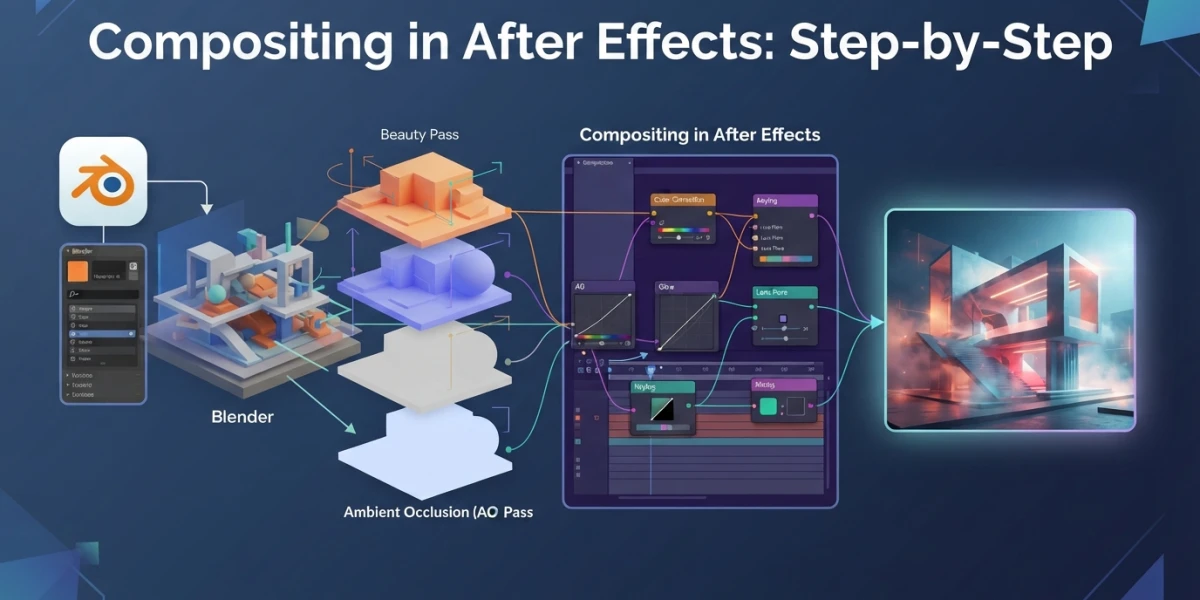
Image generated with AI
After Effects compositing: 3D render to final shot

Diego Cortés
Author
Your render is finished, it looks right in the viewport, and it dies the moment it hits the comp. Compositing in After Effects is the step almost nobody teaches: what to render, how to import it without wrecking the color, and in what order to blend the pieces.
What After Effects adds once the render is done
Rendering produces the image; compositing produces the shot. The comp is where the pieces the render left apart come together: a light pass, a shadow pass, the live-action plate, the grain, the mask that hides what was on set. In 3D you change the scene and render again; in the comp you change one layer and see it instantly. The passes themselves are covered in depth in compositing with render passes and AOVs.
Before you open After Effects: what to render in Blender or Maya
Half of all compositing problems are solved before you open the program.
The passes you will actually use
Combined is the render output before any compositing is applied. Depth is the distance to the nearest visible surface and the base of any depth-based cut, but if the render uses depth of field or motion blur that pass comes out noisy and Mist is the better choice. Add Denoising Data if you plan to clean noise in the comp, and Cryptomatte when you need masks by object or material: it is an image standard built to be used in another compositing application.
Multi-Layer EXR vs a PNG sequence
In Blender 5.2 the format is picked in Media Type, in the Output panel: Image (one file per input), Multi-Layer EXR (every input packed into one multi-layer OpenEXR) or Video. The file Color can be BW, RGB or RGBA. PNG scrubs fast but it has already lost data: cut by depth or pull an auxiliary channel later and there is nothing left. On a shot headed into compositing, the EXR saves you a second render.
Premultiplied alpha, Blender's default
The manual states it plainly: for compositing and rendering, premultiplied alpha is the standard in Blender. With straight alpha the transparency lives only in the alpha channel; with premultiplied it also lives in RGB, multiplied by a background color. Import a Blender EXR believing it is straight and the edges show halos while hair, smoke and blur look dirty. The Alpha Convert node goes to straight with To Straight and back with To Premultiplied: if you took it to straight, bring it back before output. For a transparent background, Film > Transparent.
Importing the render without breaking the color
This is where most people lose a day of lighting work in a single click.
Interpreting the footage: color and alpha
In Interpret Footage > Color you assign each footage item's input profile, which After Effects converts into the project's working space. Preserve RGB skips that conversion: it keeps the numbers, not the appearance; it is right for control maps and a disaster on the beauty render out of habit. The same dialog decides how alpha is read: a premultiplied EXR read as straight gives bright edges, the other way round, dark ones. Against black you barely notice; over the plate you do.
Work in 32 bits per channel
After Effects works in 8, 16 or 32 bpc. At 32 bpc values are floating point, they accept numbers below 0 and above 1, and that is why 32 bpc is also HDR. At 8 bpc each channel runs 0 to 255 and anything beyond is clipped: you comp, apply a blur or lift a highlight, and the bright areas go flat. The render was not wrong; the comp had no range to store the information.
The no-double-conversion rule
The view transform is applied once, in one place only. If you already baked the look in Blender with AgX or ACES and then apply a LUT or an aggressive output profile in After Effects, the shot ends up converted twice: washed-out blacks and highlights with no detail. To work on the image as it came out of 3D, use Standard as the view transform on the 3D side, since it applies no extra conversion, and adjust the look in the comp. The detail is in color management in Blender, and double gamma is caught with the eyedropper on blacks and whites.
Compositing in After Effects with passes
With the material interpreted correctly you can start blending, and the order matters as much as the tools.
Depth: Depth Matte and Fog 3D
Depth Matte reads depth and cuts the image at any point along the z axis. Its finer use is not removing backgrounds, it is inserting objects inside the scene: apply the effect, set the insertion depth, duplicate the layer, enable Invert on the top copy and place the new layer between the two. Fog 3D simulates fog and blurs by distance in z, and 3D Channel Extract makes auxiliary channels visible. One warning from Adobe's own help: if the scene extends more than 5,000 pixels from the camera, raise Black Point.
Multi-layer EXR with EXtractoR and ProEXR
After Effects imports PIC, RLA, RPF, OpenEXR and EI, and all of them can carry, alongside RGBA, channels such as z depth, object IDs and texture coordinates, reachable through the 3D Channel effects. The EXtractoR, IDentifier and ID Matte plug-ins ship with the app: you do not have to buy them. ProEXR Comp Creator builds one layer per channel of the OpenEXR, meaning one layer per pass, without exporting twelve files by hand.
Blend modes for passes
Blend modes are grouped by behavior: subtractive (Multiply, Color Burn, Linear Burn, Darken), additive (Add, Screen, Lighten, Color Dodge) and complex (Overlay, Soft Light). Multiply never gives a brighter result, Screen never gives a darker one and Add sums and brightens like projected light. That is why a shadow pass goes with Multiply and a light pass with Add or Screen. When the blend is a sum of light, do it in linear light: the project settings let you linearize the working space.
Blending the render into a live-action plate
A well-composited render still gives itself away for the texture and for the camera.
Grain: Add Grain and Match Grain
Add Grain generates grain out of nothing with film-stock presets, Match Grain analyzes the grain of one clip and applies it to another, and Remove Grain reduces noise. The one you almost always need is the middle one: matching the render's grain to the plate's. The classic mistake is a different grain on every layer, or one uniform grain over the whole shot. And if you denoised the render, that grain has to go back.
Camera: from track to 3D and back
The 3D Camera Tracker analyzes a clip and extracts camera movement and 3D scene data, which is what lets you composite 3D elements over 2D footage. On the 3D side, tracking is covered in tracking and matchmoving in Blender, and the invisible floor in integrating a 3D model into a real photo. After Effects imports camera data baked from Maya project files (focal length, film size and transform), and also camera data stored in RLA or RPF sequences. For the return trip, these two videos show it without plugins: importing After Effects tracking data into Blender and exporting a camera track to Maya.
When After Effects is not the answer
If the job is a color tweak or a two-layer retouch, Blender's Compositor handles it without changing applications; if it is editing, the sequence editor cuts it without leaving the project, as shown in the Blender VSE. After Effects wins when there is a live-action plate, tracking, grain to match and several passes to blend. If none of that exists, adding another application just adds one more place where the color can break.
Conclusion
Compositing in After Effects does not begin in After Effects: it begins with the decision of what to render. This is the order that works for me, and you can repeat it on any shot:
- Render a multi-layer EXR in RGBA with the passes you will use, and Cryptomatte if you need masks.
- Check the color and alpha interpretation of every footage item before touching anything.
- Set the project to 32 bpc even if the deliverable is 8.
- Cut by depth with Depth Matte and use Fog 3D for distance, not to hide mistakes.
- Blend each pass with its matching mode, in linear light whenever the blend is a sum of light.
- Match the grain against the plate and compare one frame with the original render to rule out double gamma.
To see it in video, the platform's After Effects category has curated tutorials that start from zero: Start Compositing in After Effects as a starting point, Compositing in After Effects: Quick Breakdown for the 3D-to-comp handoff, and Maya Arnold: AO and Cryptomatte in After Effects if you work in Maya with Arnold.