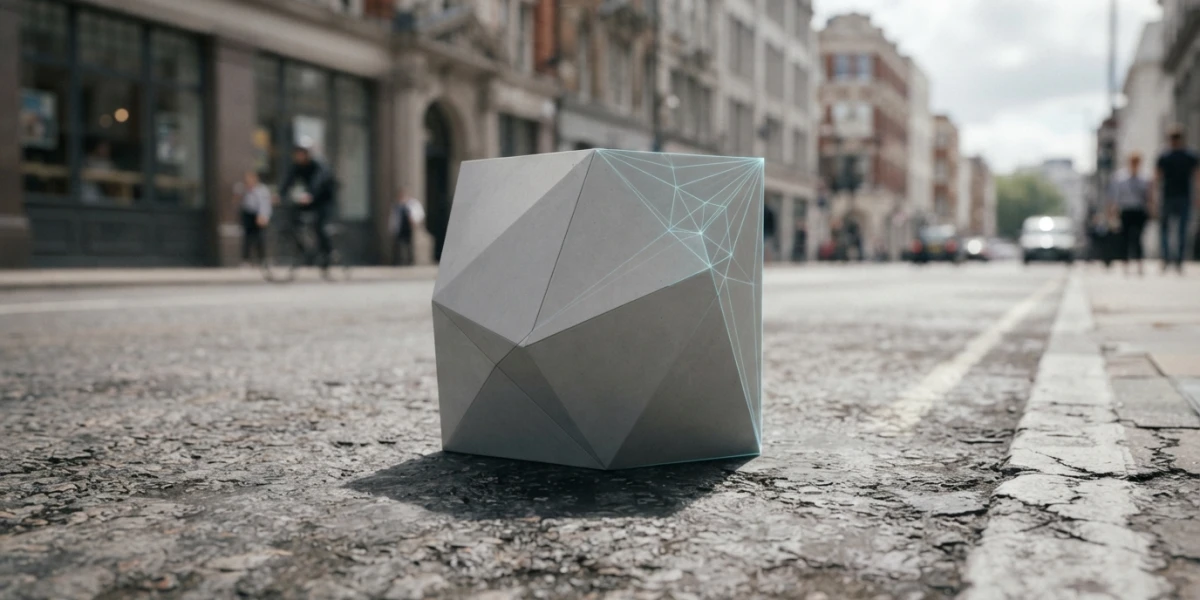
Image generated with AI
Shadow catcher in Blender: 3D into a real photo (steps)

Diego Cortés
Author
A real street, a building that was never there, and a shadow that gives the whole thing away. The shadow catcher is the piece that stops a render from floating above the photograph and makes it sit as if it had always been there.
What the Shadow Catcher Solves, and What It Does Not
A 3D integration almost never fails because of the model. It fails at the contact shadow, that dark core where the object meets the ground. The eye uses it to decide whether something has weight, and when it is missing the brain flags the composite before it can explain why.
The captor plane attacks exactly that point. Switch it on and the plane stops showing up in the render but keeps existing for light: it only receives shadow rays. Your floor geometry never appears in the final image, yet the shadows that fall on it do. That is the difference between cutting an object out and placing it.
One detail in the 5.2 manual changes the result and most people skip it: the captor still interacts with the scene through indirect light, so your object can tint the plane and the plane can bounce colour back. What it does not do: it does not reflect the real floor, it does not fix a badly measured camera and it will not rescue lighting that does not match.
Step 1: Measuring the Photo's Camera
Everything depends on the virtual camera matching the one that took the photo. If the perspective is off, no lighting work saves the shot.
fSpy: Two Axes and a Vanishing Point
For stills the most direct tool is fSpy, a free open-source camera matching app. You trace two vanishing directions and it works out focal length and orientation; there is an official Blender importer that sets the camera and, optionally, the background image. The full workflow is in the curated video How to Place 3D Models in 2D Photos Using Blender & fSpy.
Calibrating by Hand in the Clip Editor
Inside Blender, the Clip > Sidebar > Track > Camera panel gives Sensor Width, Pixel Aspect, Focal Length (mm or pixels), Optical Center and Lens Distortion. Distortion supports Polynomial, Division (fisheye), Nuke and Brown-Conrady; positive is barrel, negative is pincushion. The manual is clear that coefficients are dialled in by hand.
When the EXIF Is Gone
Focal length normally comes from EXIF. If the photo went through a messaging app, it is gone. You can still estimate it from converging lines, but not recover the exact lens distortion. An estimated focal works as long as you keep the object away from the edges of the frame.
Step 2: Building the Scene at Scale
Resolution, Aspect Ratio and Framing
The photo is in charge. Set the resolution to its exact aspect ratio, not the 1920x1080 preset, and check Sensor Fit: it decides how the sensor maps onto the output and therefore the angular field of view. A test render with the photo as background has to line up pixel for pixel.
One Known Measurement to Lock the Scale
You need one real reference: a doorway width, a brick height, the track of a car. Measure it, bring it into the scene and scale the object until the two agree. Scale error is the fastest way to break the illusion. Check the horizon at thumbnail size too; support errors surface sooner when the image is small.
Step 3: The Invisible Floor
Enabling Mask - Shadow Catcher
The switch lives in Properties > Object > Visibility, as Mask - Shadow Catcher. It goes on the plane acting as the floor, not on the integrated object. The 5.2 manual documents it in the Cycles section as the way to composite CGI elements with real footage.
The Shadow Catcher Pass
The pass appears in Render Properties > Layer > Passes, inside the Other group. Here is the warning almost everyone skips: the result changes depending on whether it is enabled. With the pass on, all indirect light interactions are captured; without it you get a simple approximation.
Film > Transparent, Alpha Route vs Pass Route
Turn on Render > Film > Transparent so you can composite over the photo afterwards; the same page offers Transparent Glass and Roughness Threshold. There are two paths: the alpha route, with the captor baked into the alpha and an Alpha Over at the end; or the pass route, multiplying the Shadow Catcher pass over the footage, which is the documented use.
Step 4: Matching the Light
Direction and Softness: Reading the Shadow
The photo already told you where the sun is. The shadow of a pole gives azimuth and elevation; the softness of its edge gives the apparent size of the source. A hard edge means direct sun or a small light; a diffuse edge means overcast sky or a big window.
Sky, HDRI and Bounce Light
The light you are missing is always the light you cannot see: sky, facades bouncing light sideways, pavement throwing it upward. With only a Sun the shadow goes black and the object looks pasted on. Add an HDRI, even an approximate one, plus a bounce plane opposite the key light. The HDRI lighting article covers the groundwork.
Exposure: Lining Up Render and Photo
Exposure is applied in stops, before the colour space conversion. Push it until a mid grey in the render matches a mid grey in the photo.
Step 5: Matching Color and Optics
View Transform: Standard When the Photo Has Its Look
The most common colour mistake. The photo already carries the camera's baked look; apply AgX, which desaturates heavily exposed colours to mimic film, and your object ends up in a different movie. The manual describes Standard as the view with no extra conversion, and recommends it when the input already has its look. For product work, Khronos PBR Neutral. Filmic is obsolete.
Depth of Field and Focal Length
The photo has one sharp plane and one blurred one, and your render has to respect that boundary. Use Focus Distance or a focus object and adjust F-Stop until the blur resembles the photo. An object sitting at the same distance as a sharp element cannot be out of focus.
Grain, Aberration and Lens Distortion
A camera photo has grain, and a clean render over it reads as pasted. In the compositor, Film Grain ships with stock presets plus ISO and softness; Lens Distortion adds barrel or pincushion and simulates chromatic aberration through Dispersion. Two rules: grain goes on after compositing, distortion goes on last, over the whole composite.
The Full Recipe in Eight Steps
- Duplicate the photo at working resolution and note the exact aspect ratio.
- Measure the camera in fSpy (two axes, one vanishing point) and export to the Blender importer.
- Verify framing: a test render must line up pixel for pixel.
- Lock the scale with a known measurement from the photo.
- Place the object with real contact and check the horizon.
- Captor plane with
Mask - Shadow Catcher, enable the pass andFilm > Transparent. - Match light, then exposure, then colour with Standard.
- Composite with Alpha Over, then add grain and aberration last.
If the object does not need precise measurement there is a route that skips fSpy: Add 3d Objects to Photos with Blender! shows that shortcut, good for product shots and loose compositions, not for archviz with strict perspective.
Mistakes That Give the Composite Away
- Shadow as a flat black smudge: no ambient or bounce light; the captor only receives shadow.
- The object floats: wrong scale or contact point; measure against a real reference and check the horizon.
- The edge of the plane shows: the floor lacks the Shadow Catcher flag or film is not transparent.
- The render looks washed out: you applied a view transform to a photo that had its look; use Standard.
- The shadow falls in an impossible direction: you did not read the photo's shadow; the Sun follows it.
- Grain only on the 3D object: you applied it before compositing; it belongs on the final composite.
- Halos on edges: straight alpha read as premultiplied; check
Straight Alpha. - The photo looks stretched: aspect ratio differs from the render resolution; set resolution and Sensor Fit.
Conclusion
Putting a 3D model into a real photograph is about respecting what the photo already decided: camera, light and colour. The shadow catcher solves the part that gives composites away, the contact shadow, but it only works when the camera is measured and the scale is honest. Start with measurement, follow with scale, and bring in the captor once the framing lines up. For the advanced case there is a Spanish-language guide to fSpy and camera projection, and for moving footage the path goes through tracking and matchmoving first.