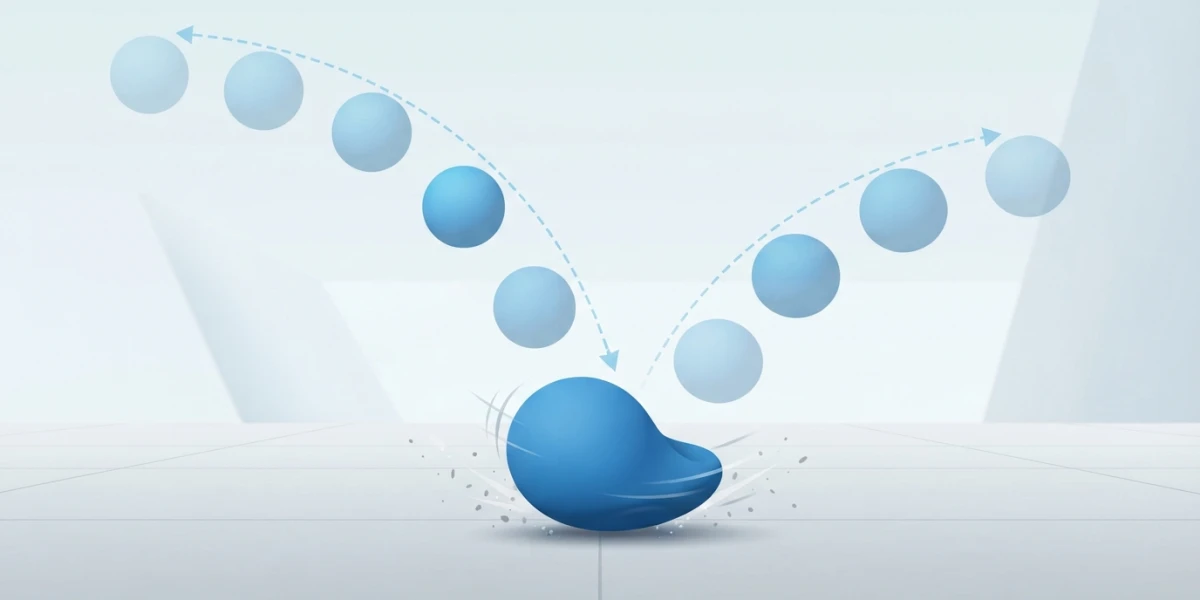
Image generated with AI
12 Principles of Animation in 3D: Blender Guide

Diego Cortés
Author
The principles of animation are not Disney folklore: they are the checklist that separates believable motion from a stiff character. This is a guide to all 12 applied in 3D with Blender, principle by principle, with the exact tools you touch in each case.
What the 12 principles of animation are (and why they still apply in 3D)
They are the list Frank Thomas and Ollie Johnston published in 1981 in The Illusion of Life, built on years of work at the Disney studio. They do not describe a style: they describe how we perceive motion, weight and intention.
In 3D the tools change, not the problem. A ball does not bounce badly because it is a polygon, but because the frame spacing is distributed poorly. F-curves, constraints and layers in Blender 5.2 LTS translate what traditional animation did by hand.
Vocabulary: 2D animation talks about keys, extremes and breakdowns; in Blender those are key poses and in-betweens on actions and curves. If you do not have a character yet, start with the guide to character rigging in Blender.
The 12 principles in three families (the map before the detail)
Memorizing twelve names is useless if you never know when to look at each one. Sort them by family:
- Family A, perceived weight and physics: squash and stretch, anticipation, timing, slow in and slow out.
- Family B, staging and performance: staging, pose to pose, secondary action, exaggeration.
- Family C, path and form: arcs, follow through and overlapping action, solid drawing, appeal.
If an animation feels weird, the problem is in family A; if it does not read, in B; if it looks flat, in C.
Family A: perceived weight and physics
1. Squash and stretch
It is the deformation that communicates weight and elasticity: the object squashes on impact and stretches when it moves fast. In Blender you scale the object or the bone and compensate the volume with the Maintain Volume constraint, which has three modes: Strict (exact volume), Uniform and Single Axis (soft bodies), with Free Axis and Volume as options.
Alternative: the Stretch To constraint, which only works along the local Y axis, so it is meant for bones. It preserves volume with Volume Variation (above 1 exaggerates, below 1 reduces, 0 is the same as None), the Volume Min and Volume Max limits and Smooth. The squash must never break the silhouette or the contact with the ground.
2. Anticipation
It is the preparatory gesture before the action: crouching before a jump or pulling the arm back to throw. In Blender it is an extra key pose before the action, with fewer frames than the action. If it lasts longer than the hit, the character looks like it is hesitating.
3. Timing and spacing
Timing decides how many frames each thing lasts; spacing, how the in-betweens are distributed. They are handled in the Dope Sheet (time) and the Graph Editor (interpolation). For a stepped rhythm there is the Stepped Interpolation modifier, and any modifier accepts Restrict Frame Range so it only kicks in on one stretch. For music-driven rhythm, animating to audio.
4. Slow in and slow out
Nothing starts or stops abruptly. The default interpolation is Bezier and it is adjusted by moving the handles. For starts and stops with character there are the Easing (by strength) categories and the dynamic effects: Back overshoots the target and comes back, Bounce rebounds with exponential decay and Elastic bounces less and less until it settles. On discrete values, such as menus or booleans, the curve always comes out stepped. The fine detail lives in the Graph Editor.
Family B: staging and performance
5. Staging
Staging means that at a glance the viewer reads what is happening, where to look and who owns the shot. You work with the camera and lights before refining the animation, or animate in camera view, separating silhouettes and using the framing to tell the intention: if the camera is wrong, the best animation is wasted. See cinematic camera animation.
6. Straight ahead action and pose to pose
Pose to pose means blocking the extreme poses first and solving the in-betweens afterwards; straight ahead action means improvising frame by frame. In 3D almost everything is pose to pose, and that is where Blender's best shortcut lives: the In-Betweens tools. The Pose Breakdowner (Shift+E) creates an intermediate pose at the current frame; Push Pose from Breakdown (Ctrl+E) pushes it away from the linear interpolation between neighbouring keys, exaggerating it; Relax Pose to Breakdown (Alt+E) moves it toward that interpolation. With the breakdowner active you can restrict it to translate, rotate or scale, to the axes, to flexible bones or to custom properties. Blend to Neighbor (Shift+Alt+E) blends the pose with neighbouring keys, and to store poses there is the Asset Browser.
7. Secondary action
It is the motion that accompanies the main action without stealing the spotlight: hair, clothing, props, breathing. It is stacked in layers with the NLA editor; for cloth there is automatic simulation and hair is solved with hair curves. If it draws more attention than the main action, lower the Influence.
8. Exaggeration
Exaggerating is not making things bigger, it is pushing the idea (pose, gesture, timing) until it reads. The short path is duplicating the pose and pushing it with the Breakdowner, but first the action must be readable: exaggerating something that does not read just produces noise.
Family C: path and form
9. Arcs
Almost nothing moves in a straight line: arms, heads and objects travel in arcs. To verify this there are Motion Paths: select the bones and press Calculate Path, with one point per frame (past in red, future in green). Path Type offers Around Frame, In Range or On Keyframes, and the Calculation Range decides which keys are calculated. When motion paths come out jagged, the problem is the spacing, not the interpolation.
10. Follow through and overlapping action
Parts of the body do not start or stop at the same time: the motion continues and overlaps. It is solved by offsetting the keys of hands, tail and hair by a few frames. It is the principle you notice most when it is missing: the character seems to float.
11. Solid drawing
In 3D you do not draw, but you still need volume and structure: the pose has to read from any angle and must not break in foreshortening. Review the animation from several angles with flat shading to read silhouettes: if the pose does not work as a silhouette, it does not work.
12. Appeal
Appeal means the character has something: proportion, design, personality in the pose. It is not beauty, it is presence. You work with the model's design and the clarity of the gesture: an ambiguous pose ruins a good design.
Practice plan: 4 Blender exercises
Theory is learned by animating. Four exercises without needing a full character:
Exercise 1: bouncing ball with squash and stretch
The ball changes shape on impact and in the air, with the Maintain Volume constraint preventing volume loss, and the spacing (slow at the top, fast while falling) handled in the Graph Editor. Reference: a bouncing ball with squash and stretch (it is Maya, but the principle is the same).
Exercise 2: in-betweens with the Breakdowner
Three key poses of a jump and the in-betweens created with Shift+E, then corrected with Ctrl+E and Alt+E. The videos on how to in-between and on keys and breakdowns pair well with it.
Exercise 3: walk cycle with arcs, overlap and follow through
Take a walk cycle as a base and add layers: offset hair or cloth, an arcing hip, head delay. Then check the arcs with motion paths.
Exercise 4: an endless cycle with the Cycles modifier
Rack a cycle (a breath, a waiting loop) with the F-curve Cycles modifier (Repeat Motion, Repeat with Offset or Repeat Mirrored; Count 0 = infinite). It must be the first in the stack and it is incompatible with Smooth (Gaussian).
Common mistakes (and how to fix them)
- Everything moves stiffly: there are keys on linear or constant interpolation.
- The character floats or the bounce has no weight: missing anticipation, overlap or squash and stretch.
- The arcs look odd: it is almost always badly distributed spacing, not interpolation.
- The action does not read: that is staging, camera and clear poses.
- There are 40 keys per bone: work pose to pose and store poses in the Asset Browser.
Conclusion
The 12 principles are a list to review before calling an animation done: look at the scene without the HUD thinking about weight (family A), ask yourself whether it reads (family B) and check silhouette and arcs (family C).
To keep going, the video tutorials pair with real demos: The principles of animation in Blender and Pose & Flow. From the blog, motion capture is a good way to study real movement before animating.